
Last checked: October 2026. This guide contains no affiliate links.
If a criminal gets one employee’s password, multifactor authentication (MFA) is often the only thing standing between them and your email, your bank portal, or your payroll account. Microsoft has reported that MFA can block over 99.9% of account compromise attacks (Microsoft Security), and the Cybersecurity and Infrastructure Security Agency (CISA) lists MFA as one of four essentials every small business should start with (CISA).
Most owners already know they should turn it on. What usually stalls the rollout is picking a method, figuring out which logins matter most, and handling the employee who gets a new phone the week after setup. The steps below cover each of those.
Step 1: Pick the strongest method each account supports
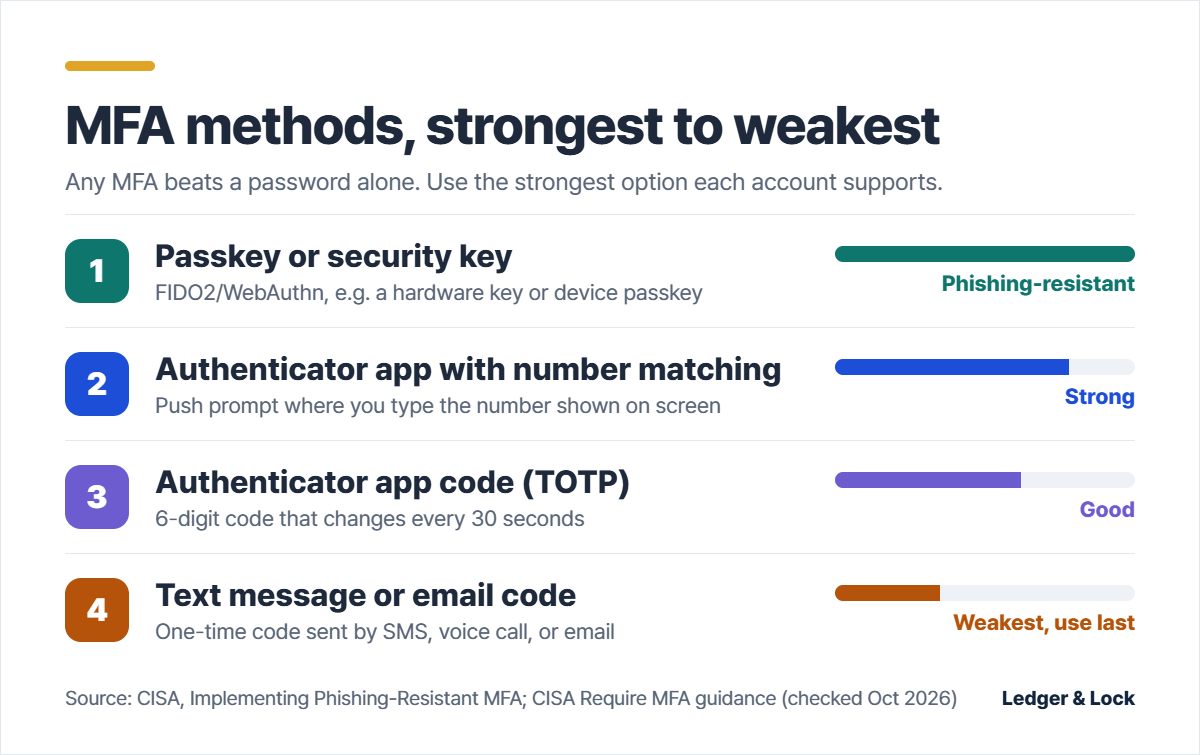
Not all MFA is equal. CISA ranks the common options from strongest to weakest based on how easily attackers can get around them (CISA fact sheet):
| Method | How it works | Main weakness | Best for |
|---|---|---|---|
| Passkey or security key (FIDO2/WebAuthn) | A key or device proves who you are to the real website only | Cost of keys; some older apps lack support | Owners, admins, finance staff |
| Authenticator app with number matching | Phone prompt asks you to type the number shown on the login screen | Can still be phished by sophisticated real-time attacks | Most employees |
| Authenticator app code (TOTP) | 6-digit code in an app, changes every 30 seconds | Can be phished if someone types it into a fake site | Accounts without push or passkeys |
| Text message, voice, or email code | Code is sent to your phone number or inbox | SIM swaps and phone-network attacks can intercept it | Only when nothing better is offered |
CISA calls phishing-resistant MFA, meaning FIDO/WebAuthn passkeys and security keys, “the gold standard.” For small businesses that cannot move there yet, it says app-based codes or push notifications with number matching are the best options. Text or email codes are still better than a password alone, but CISA describes them as the weakest form and suggests using them only when stronger options are not available (CISA).
Why number matching matters: plain “Approve / Deny” push prompts can be abused with “push bombing,” where an attacker who already has a password sends prompt after prompt until a tired employee taps Approve. Number matching stops that, because the employee has to type a number only the real login screen shows.
Step 2: Turn it on in the right order
Start with the accounts that can move money or reset other passwords. If an attacker takes over your email, they can usually reset almost everything else.
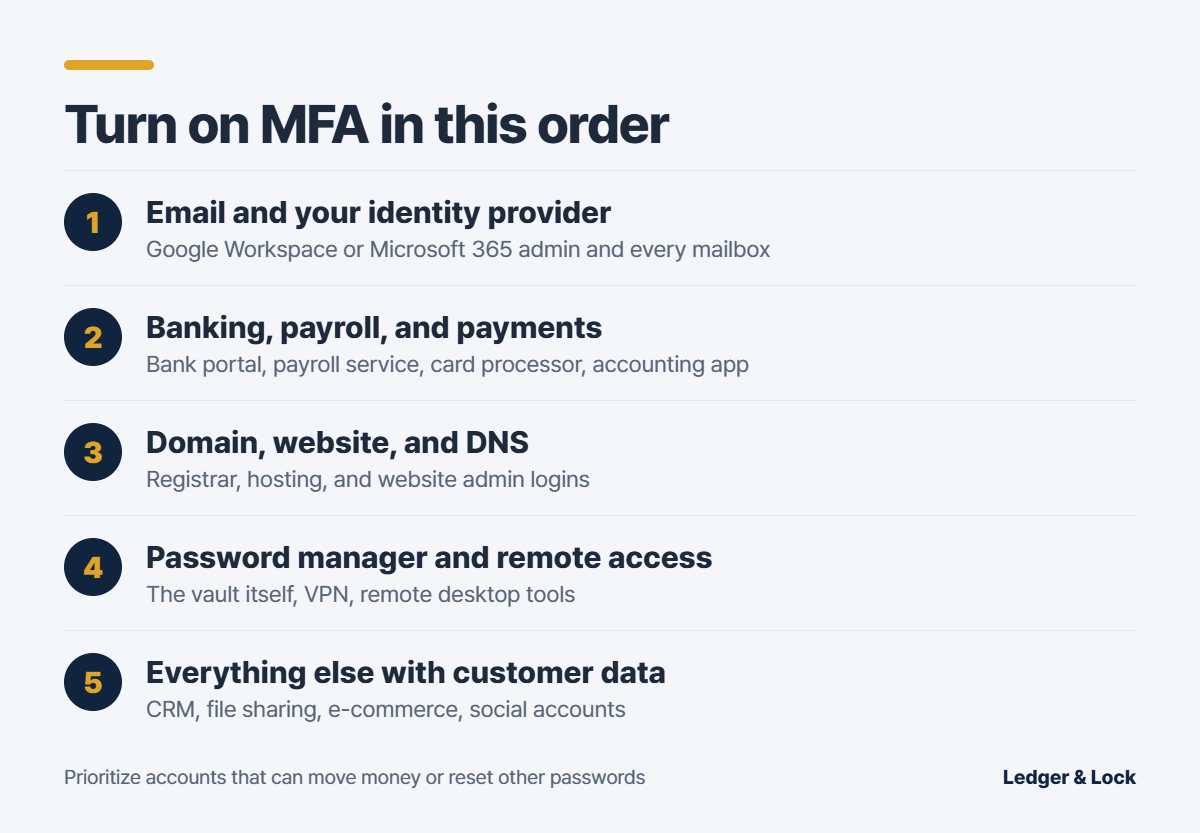
- Email and your identity provider. Your Google Workspace or Microsoft 365 admin account first, then every mailbox. Email is the reset button for most of your other accounts.
- Money accounts. Business bank portals, the payroll service, your card processor, and accounting software.
- Your domain and website. The registrar, web host, and website admin login. Whoever controls the domain controls where your email goes.
- Password manager and remote access. The password vault itself, plus any VPN or remote desktop tool.
- Everything that holds customer data. CRM, file sharing, e-commerce platforms, and the company’s social media accounts.
Step 3: Roll it out without locking people out
Before you flip the switch
- Make a short list of every shared and individual account, who owns it, and which MFA methods it supports. A spreadsheet is fine.
- Give people a heads-up a few days ahead with simple instructions and a time when someone can help.
- Decide on recovery before anyone gets locked out: who can reset MFA, and how you will verify that person is really the employee (for example, a video call, not just an email).
During setup
- Have each person install an authenticator app (such as Google Authenticator, Microsoft Authenticator, or the one built into your password manager) or register a passkey.
- Save the backup codes each service gives you, in your password manager or a locked location. Do not leave them in an email.
- For owners and anyone with admin rights, register two security keys or passkeys and keep the spare somewhere safe.
After setup
- In your admin console, require MFA instead of just allowing it, so new hires cannot skip it.
- Turn off older sign-in methods that bypass MFA where your provider allows it. Microsoft notes that legacy protocols such as basic POP and IMAP authentication were not designed to handle MFA and are a common way around it (Microsoft Security).
- Remove MFA devices and access the same day an employee leaves.
Step 4: Teach the one rule that defeats most MFA attacks
Attackers increasingly try to trick people into handing over the second factor, not just the password. One rule covers most of it:
Never approve a sign-in prompt or read out a code you did not start yourself. No real IT team, bank, or vendor will ask you for an MFA code by phone, text, or email.
The Federal Trade Commission gives the same advice in its small business guidance: require MFA for employees and contractors, and train staff not to trust links or login requests that arrive unexpectedly (FTC).
Quick checklist
- MFA is required (not optional) on email and your Microsoft 365 or Google Workspace admin
- Every account that can move money has MFA on
- Registrar and hosting logins have MFA on
- Owners and admins use passkeys or security keys, with a spare registered
- Everyone else uses an authenticator app, with number matching where available
- Text-message codes are used only where nothing stronger is offered
- Backup codes are stored in the password manager
- A written recovery process exists for lost phones
- Staff know: never approve a prompt you did not start
FAQ
Is SMS two-factor authentication still worth using?
Yes, if it is the only option a service offers. A text code is still far better than a password alone. Just switch to an authenticator app or passkey as soon as the service supports it, starting with high-value accounts.
What happens if an employee loses their phone?
They sign in with a backup code or a second registered method, then remove the old phone and register the new one. If they have neither, an admin resets their MFA after verifying their identity through a channel you agreed on in advance.
Do we need to buy security keys for everyone?
Not necessarily. Many phones and computers can store passkeys for free. Physical keys make the most sense for owners, admins, and anyone who can approve payments, because those accounts are the most valuable to attackers.
Bottom line
If you only do one thing this week, open your Google Workspace or Microsoft 365 admin console and switch MFA from “allowed” to “required” for every mailbox. Then work down the list in Step 2 as time allows, and write the lost-phone process on one page before the first person needs it.
This article is general information, not professional security advice. If you believe an account has already been compromised, contact your IT provider and report the incident at IC3.gov.
Leave a Reply