
A small business data backup works only if one copy survives the attack. Keep three copies on two kinds of storage, with one offsite and offline.
Most failed backups did exist. The backup drive sat on the same network as the files, so the ransomware encrypted both. Or the only “backup” was OneDrive or Google Drive sync, which carried the scrambled files into the cloud within minutes. Or nobody had restored a single file since the day the software was installed. CISA’s #StopRansomware Guide warns that many ransomware variants hunt for reachable backups so they can delete or encrypt them before the ransom note appears.
The plan in one paragraph: list the data you cannot run without, run an automatic nightly backup to a drive that spends part of its life unplugged, add a cloud backup that keeps old versions behind a separate login, then prove it works by restoring a file from at least a week back. Everything below expands on that paragraph, using guidance from CISA, the FTC, Microsoft and Google pages read on October 30, 2026.

What the 3-2-1 rule asks of a small business data backup
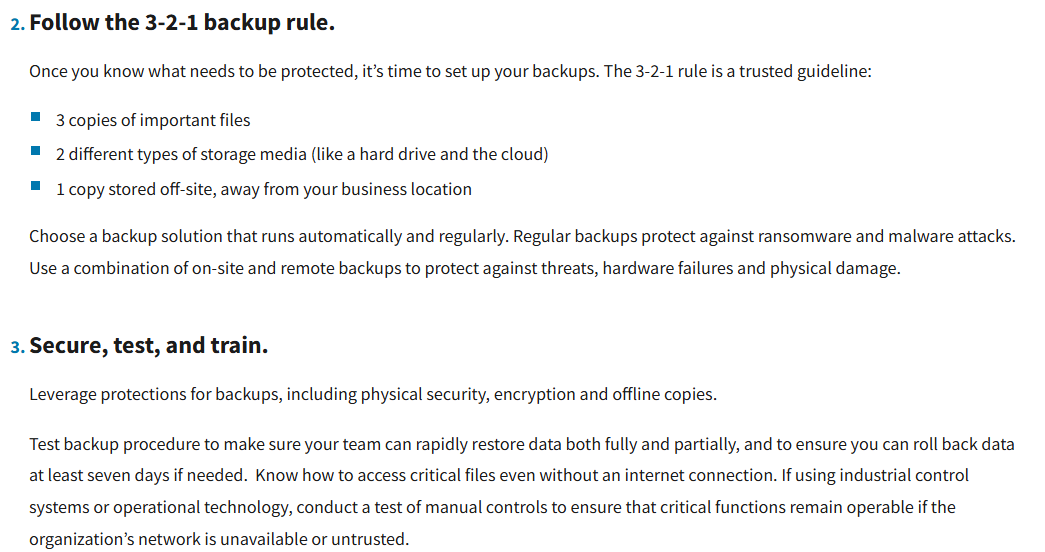
CISA’s Back Up Business Data page for small and medium businesses spells the rule out in three lines: 3 copies of important files, 2 different types of storage media (its example is “a hard drive and the cloud”), and 1 copy stored off-site, away from your business location. The same page asks for a backup that runs automatically and regularly, and it lists physical security, encryption and offline copies as the protections a backup itself needs.
Start with the data you cannot operate without
CISA’s first step is deciding what to protect, and it names financial records, emails and critical communications, configuration files and software settings, and website and operational databases. For a typical office of five to twenty people, that list usually turns into these folders and accounts:
- The shared drive or NAS where client and project files live
- Mailboxes in Microsoft 365 or Google Workspace, including the owner’s and the shared billing inbox
- Accounting and payroll data, plus the year-end reports your accountant asks for each January
- Your website’s files and database, after checking how often your host backs them up and how long it keeps them
- Scans of signed contracts, leases and insurance policies
Write the list down with a rough size next to each item. The total in gigabytes drives every later decision, from the drive you buy to how long the first cloud upload takes.
Two kinds of storage, so one failure cannot take both
The “2” exists because copies on the same kind of device tend to fail together. Two folders on one NAS die with that NAS. A USB drive plus a cloud service fail for different reasons: the drive can be dropped or stolen, while the cloud account can be locked or misconfigured. Pairing them means one problem rarely takes out both.
One copy away from the building, and one the network cannot reach
Offsite covers fire, flood and theft. Offline is what keeps ransomware from reaching a copy, and owners often treat the two as the same thing. A cloud backup is offsite, yet if the backup app on your server holds a saved password with delete rights, an attacker who owns that server can reach it. The FTC’s cybersecurity guidance for small businesses puts the offline part plainly:
“Regularly back up your data and make sure those backups are not connected to the network.” (FTC, Cybersecurity for Small Business, checked October 30, 2026)
Where OneDrive and Google Drive sync fall short
Plenty of small offices assume Microsoft 365 or Google Workspace already counts as their backup. Those services keep your files available and synced across devices, and both offer real recovery tools. They also have limits worth knowing before you rely on them.
Sync copies the damage
The PDF edition of the #StopRansomware Guide says automated cloud backups may not be sufficient, because when local files are encrypted by an attacker, those files are synced to the cloud and can overwrite the good versions. A sync client does exactly what it was built to do: it makes the cloud match the laptop, encrypted or not.
How long deleted files stay recoverable
Microsoft’s support article on restoring deleted OneDrive files says work or school accounts can restore files deleted within the last 93 days unless an administrator changed the retention setting, and that Microsoft 365 subscribers can roll an entire OneDrive back to any point in the last 30 days. Google’s Drive help page on deleting files says files moved to the trash are deleted forever after 30 days. Both articles treat emptying the recycle bin or trash as permanent deletion from the user’s side.
Those clocks are generous for a single deleted file. They are thin protection against an insider or an attacker with an admin account who empties the bins, and against a problem nobody notices for six weeks.
Cloud-to-cloud backup behind a separate login
The #StopRansomware Guide lists cloud-to-cloud backups as one option for cloud data and asks organizations to review the shared responsibility model for services such as Microsoft Office 365, so they know which protection is the customer’s job. The PDF version adds that ransomware actors often collect stored credentials and use them to get into backup tools. Give the backup console its own administrator account that is never used for email, and protect it with phishing-resistant MFA as described in our guide to setting up MFA without locking anyone out.
A worked plan for a four-person surveying firm (hypothetical)
Brookside Surveying is an invented four-person land-surveying firm. Its field data, drawings and scanned plats come to about 600 GB on a small NAS in the office. Email runs on Microsoft 365, the books are in a cloud accounting app, and the office internet plan delivers a steady 20 Mbps upload and 300 Mbps download in this example.
The layout
Copy 1 is the NAS itself. Copy 2 is a nightly backup at 10 p.m. to one of two USB drives; every Friday the owner swaps them and takes the other drive home, so one copy is always unplugged and out of the building. Copy 3 is a cloud backup service that keeps at least 30 days of versions and logs in with its own MFA-protected account. Mailboxes get a cloud-to-cloud backup. That gives three copies, a drive and a cloud service as the two media, and an offsite copy that is also offline half the time.
The upload and restore math
The first full cloud upload is the slow part. 600 GB is 4,800 gigabits, or 4,800,000 megabits. At 20 Mbps that takes 240,000 seconds, about 66.7 hours, close to three days if the line ran at full speed the whole time. Real throughput is usually lower, so schedule the first upload over a long weekend and expect it to spill over. Nightly uploads after that carry only the changed files.
Restoring everything from the cloud runs the other way: 4,800,000 megabits at 300 Mbps is 16,000 seconds, about 4.4 hours of pure download before any software overhead. That number explains why the local USB copy matters. On a bad morning, it is usually the fastest copy to restore from.

What sits between two backups
Suppose ransomware lands at 2 p.m. on a Wednesday. The last good copy is from 10 p.m. Tuesday, 16 hours earlier, and the office opened at 8 a.m., so up to six hours of work per person is at risk. For four people that is as much as 24 hours of drafting and data entry to redo. Files kept in OneDrive or SharePoint can shrink that gap through version history; files on the NAS cannot. If six hours feels like too much, add a midday backup run rather than a bigger drive.
The restore drill
CISA asks you to test that your team can restore data “both fully and partially” and can roll back at least seven days. Brookside’s monthly drill takes about half an hour:
- Pick one file that changed last week and note its name and modified date.
- Restore it from the cloud backup into a new folder, never on top of the live file.
- Open it and confirm it is the version from that date.
- Restore a whole folder as it stood seven or more days ago, from the USB drive at home.
- Write down the date, who did it, and how long each restore took.
CISA’s page does not explain where the seven days come from, but the reasoning is easy to follow: if damage goes unnoticed for a few days, a backup that keeps only three nightly versions may hold nothing but damaged copies.
Backups are step four in this small business security checklist, after the login, email and payment controls that keep an attacker from getting in or getting paid.
Questions to put to an IT provider or backup vendor
Hand this off if your data lives on a server running line-of-business software or a database, if you cannot tell which accounts have admin rights, or if a client contract or regulator sets backup terms. Firms that handle customer financial data should first check whether the FTC Safeguards Rule applies, because that rule requires a written information security program. Get answers to these in writing:
- Which of our copies is offline or immutable, and who can delete it?
- How many days of versions do we keep, and can we restore a file from eight days ago?
- Does the backup cover Microsoft 365 or Google Workspace mailboxes, or only the files on our computers?
- How long did a full restore of our data size take in a real test?
- Where is the restore procedure written down, and who on our side has practiced it?
If an attack has already happened, stop and work through what to do after a data breach at a small business before restoring anything, so you keep the evidence and do not reinfect clean machines.
Before you call anyone, gather three numbers: the total size of the folders on your list, your upload speed from a speed test run during business hours, and the date of the last file anyone actually restored. If that last answer is “never,” restore one file this Friday afternoon and record it the same way as the drill above.
While the provider is on the phone, ask about the computers themselves. Windows 10 stopped receiving free security updates on October 14, 2025, so any office machine still running it needs a move to Windows 11 or a paid Windows 10 ESU license for small business PCs, and no backup will patch it for you.
This article is general information about data backup practices based on CISA, FTC, Microsoft and Google pages checked October 30, 2026. It is not professional IT, legal, or compliance advice. For incident help, CISA’s StopRansomware site lists federal resources and reporting options.
Leave a Reply